






Everything about a child’s education, in real time
Living Sky School Division uses Edsby to give families a modern way to follow your child(ren)'s academic progress, get school updates, submit absences and much more. In order to gain valuable information about your child(ren)'s progress, we recommend being enrolled and active on Edsby.
We encourage families to use Edsby to:
- Notify your child(ren)'s school about absences
- Keep in communication with your child(ren)'s teachers
- View upcoming events happening in your child(ren)'s school
- View your child(ren)'s report card
- and more!
Getting Started with Edsby
You will receive more information from your child(ren)'s school when the Parent Accounts are ready, but if you already have an account set-up or would like to familiarize yourself with the platform in the meantime, we hop this information will help.
Setting Up Your Account
Once a school confirms Parent Accounts are ready they will send parents/guardians associated with each student an email with a link unique to them (each child will have an invite sent so make sure you don't delete them if you see multiples!). The invitation will be sent to the email provided by families to the schools when their contact information was set up. You can follow these steps on a desktop computer OR a mobile phone.
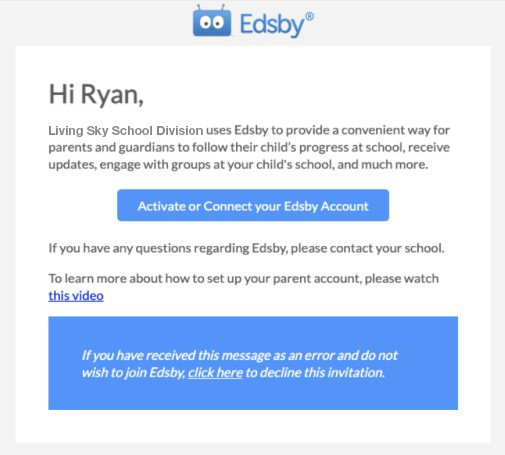
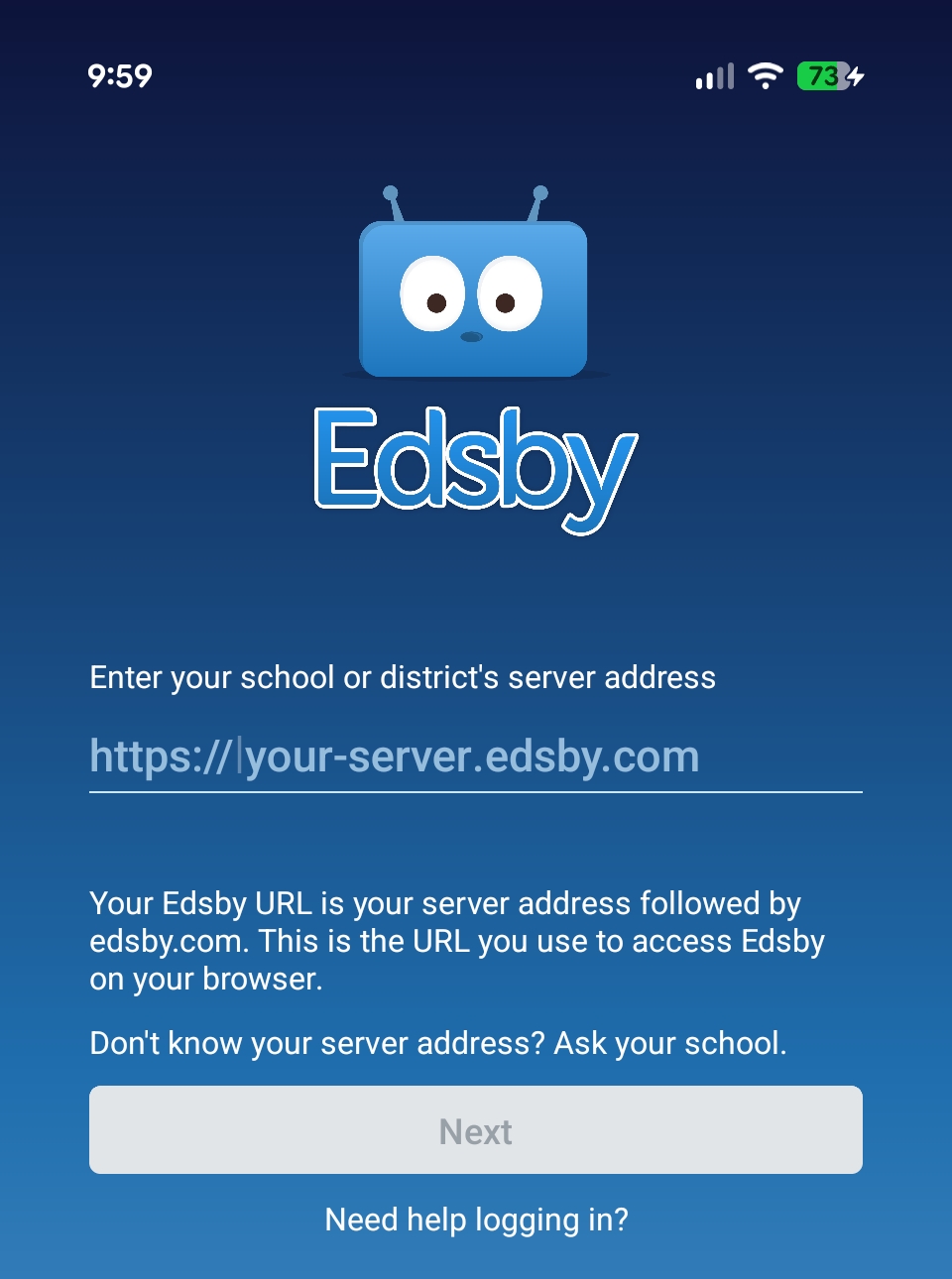
Click the link will set up a family member's Edsby account in seconds. You may be asked for a SERVER ADDRESS. Enter in lssd (the rest of the web address should autofill, if it doesn't enter lssd.edsby.com).
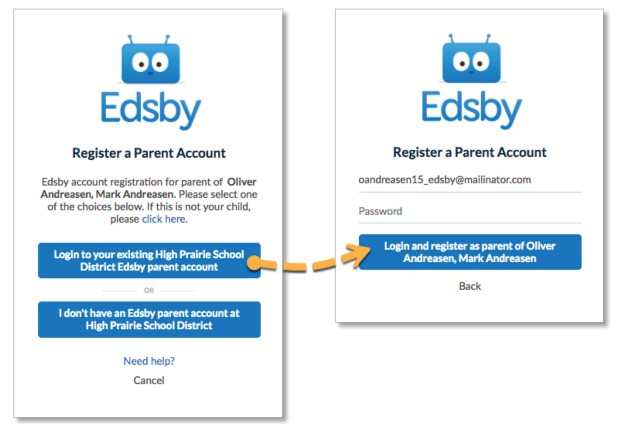
If you are CREATING A NEW ACCOUNT you will select 'I don't have an Edsby parent account at Living Sky School Division' and follow the prompts.
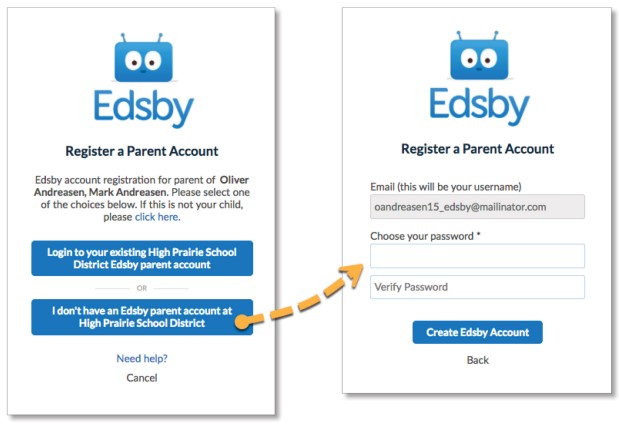
If you would like to LINK TO AN EXISTING ACCOUNT you will select 'Login to your existing Living Sky School Division Edsby parent account' and enter your password (your username is your email if it is not automatically filled in).
A video walk through of these steps is included below:
Accidentally decline your invitation to Edsby or haven't received an invite at all? Contact your school and they would be happy to resend or assist you in getting your account set up.
Turning on Notifications
You can set notifications, including mobile notifications if using the Edsby app, to stay up-to-date with what's going on in your child(ren)'s classes/school.
- Open the Edsby app
- Click the menu icon (three horizontal lines in the top left)
- Select SETTINGS
- Select NOTIFICATIONS
- Click on each hyperlink to set notifications for Schools, Student and Groups
- Review each setting
- Recommended Settings - Notification Bell ON, Mobile ON for each section
- Select OTHER SETTINGS to change the Language Preference

On your mobile device, you will also need to enable notifications for the Edsby app on your phone. You should be able to find this by going into SETTINGS - NOTIFICATIONS and making sure notifications for the Edsby app are turned on.
Entering Absences
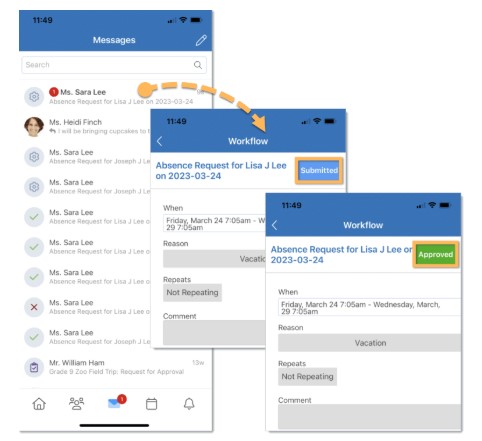
Parents/guardians can schedule absences for their children right through Edsby. Click Absent Today if a child will be away on the current day. Click Plan an Absence if the child will be away for multiple days, partial days, or another day in the future. Fill out the form and click Send to School Office.

A submission receipt will be sent to the parent/guardian's email. Once the school office has reviewed and approved the absence, the status of the receipt will change to Approved.
Attendance Incident Notifications
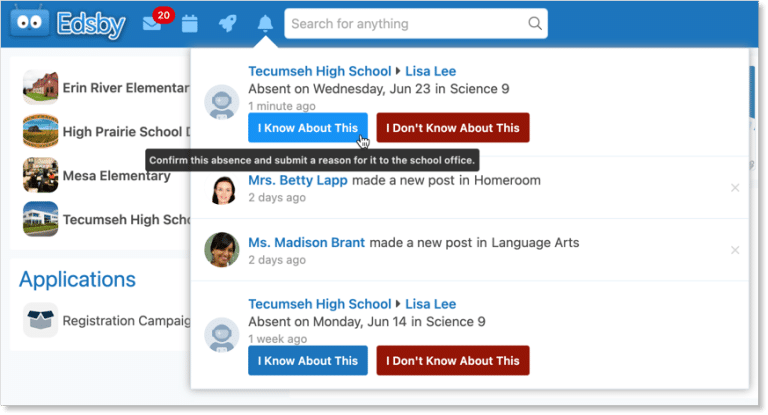
If a child is marked Late or Absent by any of their teachers and there is no Planned Absence listed for them, the Attendance Office may choose to notify parents through Edsby. In order for parents to receive these notifications, they must enable them in their Notification Settings. Navigate to Settings, select Notifications, and click the child’s name. Some schools also used an automated calling system through SchoolMessenger/Memo (please reach out to your school if you would like to clarify what system they use).
If through Edsby, the parent/guardian will be notified of the late or absent status and be provided with two options to reply back to the office - I Know About This or I Don't Know About This. The school office will be notified if the child is unaccounted for.
Viewing Report Cards/Assessments
Living Sky School Division has chosen to share Report Cards online through Edsby, parents/guardians can view their children’s Report Cards through their Edsby account.
When grades are ready, a button will become available at the bottom of the Classes panel of each child. Click the View Report Cards button. This will bring up a list of all previous report cards for that child. Select a Report Card to view.

To download and save a local copy of a report card, view the report card from an Edsby desktop browser login. Use the print to PDF feature available in most mainstream browsers to save the report card to a PDF file on a device. Depending on the report card format, best results may be obtained by toggling off margins and headers and/or selecting portrait vs. landscape orientation.
Frequently Asked Questions
- What is the server name when using the app? LSSD
*If you are new to Living Sky School Division and previously used Edsby in another school division, you will have to log out of Edsby and change the server to LSSD.
- What is my username? Your username will be the email address that you provided to the school office. *If you are a division employee, ensure the email address on file with your child(ren)'s school is a personal email address to eliminate challenges when logging in. Use this non-LSKYSD account to login. Do not use the Microsoft login option.
- How will I know that I have been invited to Edsby? You will receive an email to the email address you have provided the school for each child you have in the school. Be sure to check your spam or junk folders!
- Will I only receive one invitation if I have more than one child in a school? You will receive an invite for each child enrolled in a school.
- What if I forget my password? Click the 'Forgot Password' link on your login screen. An email will be sent to the address associated with your account to reset the password. Please contact your school if this method does not work.
- Why can't I see messages or grades from last year? Edsby only shows information for the current school year. At the end of each school year, all content from the previous year is archived. This includes parent messages, student grades, classes and groups. Due to this archival process, information from past school years will no longer appear in your Edsby account. Families who wish to keep records are encouraged to save or download important information before the end of the school year
For even more information about Edsby, visit https://www.edsby.com/support/parents/ (this link will open in a new tab). For assistance setting up your account, or general inquiries about how your child(ren)'s school utilizes Edsby, please contact your school. School contact information can be found via this link.